> For the complete documentation index, see [llms.txt](https://docs.pagerly.io/llms.txt). Markdown versions of documentation pages are available by appending `.md` to page URLs; this page is available as [Markdown](https://docs.pagerly.io/oncall-and-rotations/round-robin-oncall-without-schedule/how-to-add-round-robin-rotation-for-oncall-without-schedule-in-pagerly.md).
# How To Add Round Robin Rotation for Oncall without Schedule in Pagerly
This section covers creating round-robin rotations wihtout schedule for picking tasks one by one
Follow the following steps to Add Rotation / Shift Schedule in Pagerly
1. Go to Pagerly App in Slack
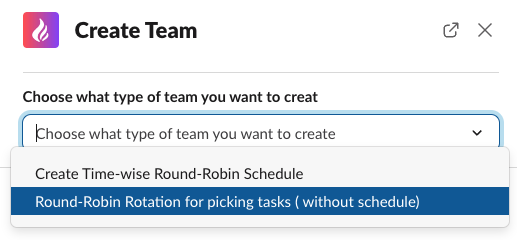
2. Click **Add Round-Robin Rotation** and then Round-Robin Rotation for picking tasks ( without schedule)
round robin shift schedule on slack
3. **Choose Name / Team command**
This is your team name and the slack command that would be used to mention the current assignee,
* `@Pagerly ` : To assign the current message on any Slack Thread
4. **Add users to include in the rotation -**\
\
The users should be added in the order of rotation i.e. the first user would be the first assignee when the rotation is starting.