> For the complete documentation index, see [llms.txt](https://docs.pagerly.io/llms.txt). Markdown versions of documentation pages are available by appending `.md` to page URLs; this page is available as [Markdown](https://docs.pagerly.io/oncall-and-rotations/create-and-manage-schedules-in-pagerly.md).
# Create & Manage Schedules in Pagerly
Pagerly lets you **own your on-call schedules directly inside Slack**. Instead of relying on external schedulers, teams can create and manage their rotations, shifts, and overrides within Pagerly.
This section covers how to:
* Create Round Robin schedules
* Create Shift schedules
* Sync Schedule and Oncall to Slack usergorup like @oncall
* Sync schedules to Slack, Google Calendar, and Linear
* Manage Overrides (temporary replacements)
* Handle Multi-Team and Multi-Rotation setups
***
### 🔄 Create Round Robin Schedule
Round Robin schedules distribute on-call duties evenly among team members. Pagerly rotates responsibility automatically, removing the need for manual updates.
***
### ⏰ Create Shift Schedule
Shift schedules assign users to specific time blocks (e.g., day/night, weekday/weekend). This is useful for distributed teams or time-sensitive operations.
#### 📅 Multiple Schedule Types
#### Pagerly supports creating different types of schedules to fit your team’s workflow:
Day-wise – assign daily on-call engineers.
Week-wise – set weekly rotations for fairness.
Month-wise – long rotations for larger teams.
Custom day-wise – tailor schedules to specific weekdays (e.g., Mon/Wed/Fri).
For even more complex requirements, [Pagerly supports AI-generated rotations. Simply provide your team size, preferences, and constraints — Pagerly AI can suggest optimized schedules automatically.](/oncall-and-rotations/create-rotations-using-ai.md)
***
### 🔗 Sync Pagerly Schedules to Other Tools
Once created, Pagerly schedules can sync automatically to external tools:
* **Slack Usergroup** → Keeps a group (e.g., `@oncall`) updated with the current engineer.
* **Google Calendar** → Creates calendar events for visibility.
* **Linear** → Ensures tasks are always assigned to the correct on-call engineer.
***
### 🔄 Manage Overrides (Temporary Replacements)
Overrides allow you to swap one engineer for another in the active schedule. The replacement is reflected across Pagerly, Slack, Google Calendar, and integrations.
***
### 👥 Multi-Team / Multi-Rotation Handling
Pagerly supports multiple teams and complex scheduling:
* Create separate rotations for different teams (e.g., Backend, Infra).
* Escalate incidents across multiple rotations if not acknowledged.
### Follow the following steps to Add Rotation / Shift Schedule in Pagerly
1\. Navigate to

2\. Click "Add Team"

3\. Select 'Create Time-wise Round-Robin Schedule' OR 'Oncall Schedule'\
for creating a time based self rotation team.

4\. 1. Select to rotate users or usergroups.\
2\. Select rotation frequency.\
3\. Select rotation day. (Can only select multiple days if frequency is set to 'Daily')
{% hint style="warning" %}
For more complex rotations, use Custom Options which create [Rotations using AI.](/oncall-and-rotations/create-rotations-using-ai.md)
{% endhint %}
\
4\. Select time.\
5\. Select timezone.\
6\. Select users to be included in rotation. (Select users or usergroups based on the type of rotation selected in Step 1)

5\. Click "Generate Preview" to see a preview of how your rotation will be set.

6\. Rotation preview is generated.

7\. Click "Next"

8\.
1.[ Add team name.](#team-name-settings)\
2\. [Add usergroup to mention the current on-call/rotated user (optional).](#usergroup-settings)\
3\. [Add permanent users (optional).](#usergroup-settings)\
4\. [Set automated reply (optional).](#automated-replies)\
5\. [Set the team channel to get rotation updates.](#team-channel)\
6\. [Check the box to receive update notifications.](#team-channel-notifications-and-channel-topic)\
7\. Click the "Save" button.

9\. Team added successfully!

***
### Each Team has the following properties:
### Team Name Settings
This is your team name and the slack command that would be used to mention the current oncall, fetch oncall schedule, etc. i.e. You can use
* `@Pagerly ` : To mention the current oncall on any Slack Thread
* `/schedule : To fetch the team's oncall schedule. You can then manage( view, override ) from Slack itself`
{% hint style="warning" %}
There are some gotchas to keep in mind when selecting the team name :
Single word only: You can only put a single word while choosing the command name. You can combine long names with underscores, hyphens, etc
You can use names like : `dev-on-call , dev, dev_on_call`
* You cannot use names like : `dev on call`, `payments team 2`
* Cannot use the name `help : This is due to slack limitation of keeping help as a reserved keyword . You can use ``@pagerly help`` for help needed in the command`
{% endhint %}
### Usergroup Settings
With Pagerly you can sync the Oncall Schedule with Slack Usergroup
You can sync with External Schedule like Pagerduty, Opsgenie, Google Calendar etc
You can also sync with Pagerly Round-Robin Schedule
\
**Pagerly would automatically fetch the latest oncall(s) and add the users in the usergroup and remove others**
{% hint style="info" %}
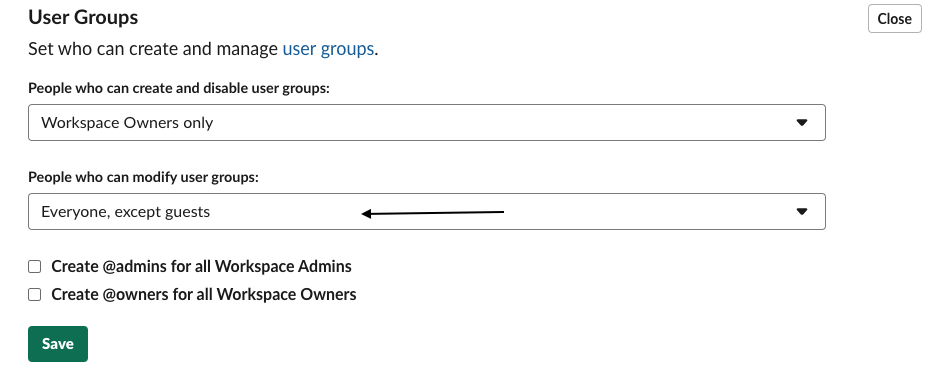
For Usergroup to work : Pagerly App uses Slack's User Group feature to create an @mention for every Please make sure you have it enabled for everyone in the [workspace settings](https://my.slack.com/admin/settings#user_group_restrictions) .
{% endhint %}
* **Usergroup**: If you want to have a custom command like `@dev-on-call` instead of `@Pagerly dev-on-call` or If you already have a usergroup and you want the current oncall(s) to be automatically added to the usergroup, you can use this property.\
**Pagerly would automatically fetch the latest oncall(s) and add the users in the usergroup and remove others**
* **Permanent Users in the user group (optional) :** These are the members who you need as permanent members of the usergroup
### Automated Replies
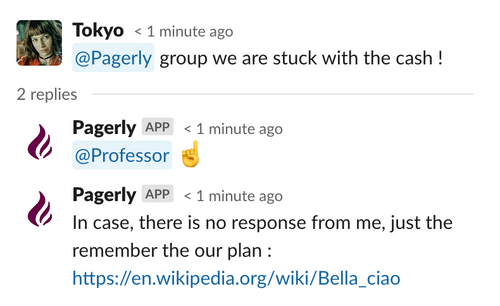
**Automated Reply:** To add a fixed reply when your oncall is mentioned. Works only with `@Pagerly commands`. You can put SOPs, Troubleshooting docs, etc in automated replies. This would help in saving precious oncall time since some of the queries can be automatically taken care of :moneybag::moneybag:
***
### Team Channel, Notifications and Channel Topic
#### T**eam Channel**
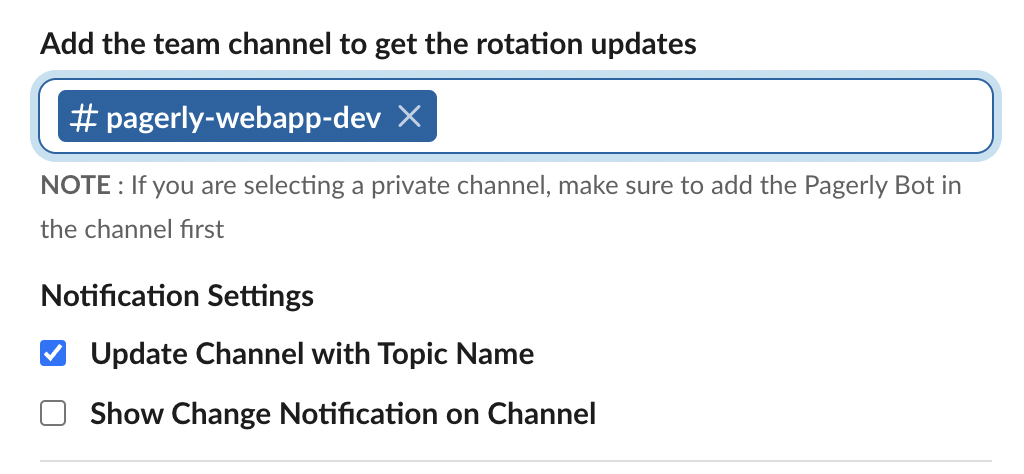
The slack channel which would subscribe for any oncall handover / oncall rotation change. On any change in oncall rotation, you would receive 2 notifications on this slack channel
* **Channel Topic Update** : Your slack channel topic would be automatically updated with the current oncall.\
It would look something like this 👇🏻
* **Channel Message** : Your channel would receive a notification on the oncall change
([Customize Notification Here](https://docs.pagerly.io/how-to-work-with-pagerly/custom-change-notification-on-slack))👇🏻
#### **Notification && Topic Setting**s
You can choose to receive if you want to receive notifications on oncall/rotation change as well topic updates.
* Update Channel with Topic Name -> If you want your channel topic to be updated with latest oncall
* Show Change Notification on Channel -> If you want to receive the Notification whenever there is a change in oncall / rotation ([Customize Notification Here](https://docs.pagerly.io/how-to-work-with-pagerly/custom-change-notification-on-slack))
\
\
\
The next section would be how to setup the team with all other fields